Welcome to the Elite!
Congratulations! You are among the first to experience the most exclusive cold wallet card materials in your hands. A powerful, non-custodial solution wallet to securely manage your crypto. Powered by award-winning technology recognized twice by cybersecurity experts, HASHWallet ensures top-notch security and innovation.
Exclusive free services for HASHWallet Users
🔄 eSignus recover: a decentralized recovery system that keeps you in control
♾️ Unlimited key management: manage as many private keys as needed
👨👩👧👦 Inheritance without key sharing: ensure access for your heirs without compromising your security
Setting Up HASHWallet Elite
1. Download the app
Get the HASHWallet app from the official store.
2. Set up your account
After downloading the app, open it and follow these steps to create a new account:
- Tap "Activate your card" → "Activate card"
- Enter your email
🔒 Security Recommendations:
- Use a secure email provider with end-to-end encryption, such as ProtonMail.
- Preferably, use a dedicated email account that you don’t use for other purposes.
- Do not share your email address, nor install it on your phone.
Next, enter your phone number to enhance account security.
2.1 Before scanning your cards
🔹 NFC Scanning Considerations:
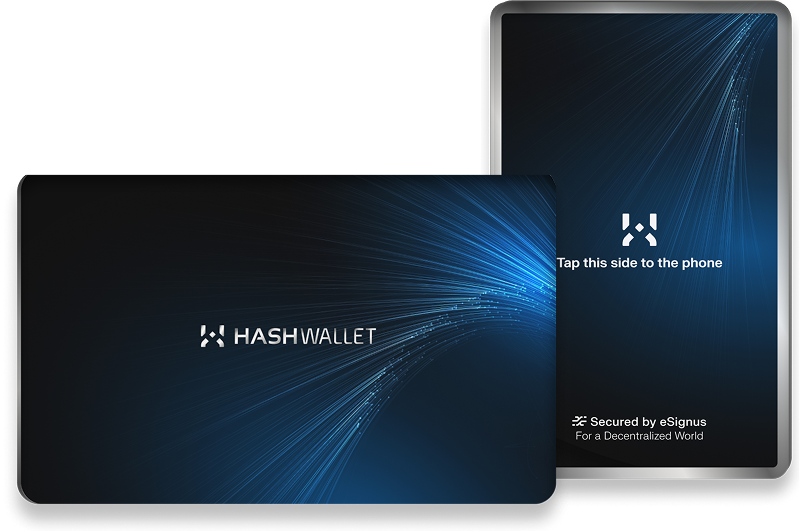
- To scan your HASHWallet Elite, tap the side with the silver frame to the phone. It will not work with the other side.
- Hold the card in the same place until the scanning is complete, as the system continues reading data.
-
For iOS: Place the card on the back of the phone, as shown in the image.
-
For Android: The NFC antenna location varies by device, but it's typically between the middle and upper half of the back. Slide your card slowly from the top of your phone to the bottom, and stop when you feel the vibration. Hold your card there until the scanning is completed.
📷 Example: Optimal spot for Samsung Galaxy S24 Ultra
2.2 Scan card
To start, tap "Scan card" on the main screen and scan your Elite card with the silver frame side to the phone. Ensure NFC is enabled.
Generate keys or import a recovery phrase?
🔑 Generate keys (Recommended ✅)
- This option generates new seedless keys inside the card’s secure chip.
- Your keys will never be displayed, and they will be securely stored within the chip.
To generate new keys:
- Tap "Generate Keys"
- Name your seed
- Tap "Continue" and scan your card
- Enable biometric unlock for secure access
📜 Import from a recovery phrase (optional) If you have an existing recovery phrase, you can import it:
- Select the phrase language and number of words
- Tap "Continue" → "Confirm and proceed"
- Confirm understanding by tapping "I understand"
- Enter each word in order
💡 Extra security tip: Although our app is highly secured against online threats and bots, you can turn off your internet connection before importing it for additional protection.
Follow the on-screen steps to complete the import process.
3. Creating a wallet
- On your seed screen, tap the ➕ button.
- Search for your token.
- If it’s not listed, you’ll need to add a smart contract to create it.
- ❗️Ensure you choose the correct blockchain, as tokens exist on multiple chain
- Confirm with your card and follow the in-app steps.
5. Understanding your seed
Each seed is represented by a virtual card containing the following elements:
🔹Adding wallets
Tap the "➕" button to create new wallets.
- Search for your preferred asset and select it to create a wallet.
- Some coins may require entering a smart contract.
🔹Active Seed Indicator
- A green circle 🟢 next to the seed name means it is active. If you have multiple seeds, this helps you identify the one in use. If you try to use an inactive seed, the system will require you to activate it first.
🔹Backup Reminder
- After creating new wallets, a red circle 🔴 appears on the three-dot button at the top-right corner of the virtual card. This indicates that a backup of the wallets' structure is pending.
How to back up your wallets structure
- Tap the three dots button → "Back up wallets structure"
- Enable "Save wallets structure"
- Tap "Got it" → "Encrypt & upload"
- Scan your card to complete the backup
💡 Note: This backup only saves your wallets structure (not balances), ensuring you don’t need to recreate wallets if you sign out.
6. Understanding settings
Manage card
-
Restore existing seed
To restore seeds you created in the past after a sign-out, or to recover your crypto using a backup card. -
Add new seed
Create/import new private keys.
eSignus Recover
-
Buy backup card
Order an uninitialized backup card to recover your crypto. -
Initialize backup card
To set up your backup card and restore your keys.
New card
-
Buy new card
Purchase a new card from our shop. -
Initialize new card
Set up your new HASHWallet
Security
-
Manage Access
Update your email or phone number if needed. -
Biometric Unlock
Enable or disable biometric authentication.
Preferences
-
Balance Currency
Choose your preferred currency for displaying balances. -
Language
Select the app language.
Get started
-
How to scan my card
Learn how to scan your card. -
Product guide
Learn more about your HASHWallet card and app. -
Restore missing wallets
Instructions on how to restore your wallets if they aren't visible on the app.
Support
-
Submit a request
We will help you with any issue you may have. -
Telegram group
Join our Telegram community or talk to us privately (official user accounts @danielhr and @sarahdezrguez) -
About my card
It provides information to the support team for troubleshooting. -
Enable track ID
It helps us to learn more about any error you may be encountering.
About version (current app version number)
-
Terms and conditions
Read our terms of service. -
Privacy policy
Learn how we handle your data. -
User statistics
Choose whether to share usage statistics.